Assessment lifecycle based on Vendor Response flow

Overview
This article explains how an assessment progresses from the point a collection request is sent — including reminder behavior, what happens when a vendor does not respond, how to extend timelines, and how the follow-up questionnaire flow works.
Default flow
- Assessment is launched
When you initiate an assessment via Update Assessment > Request information, a collection request is sent to the vendor.
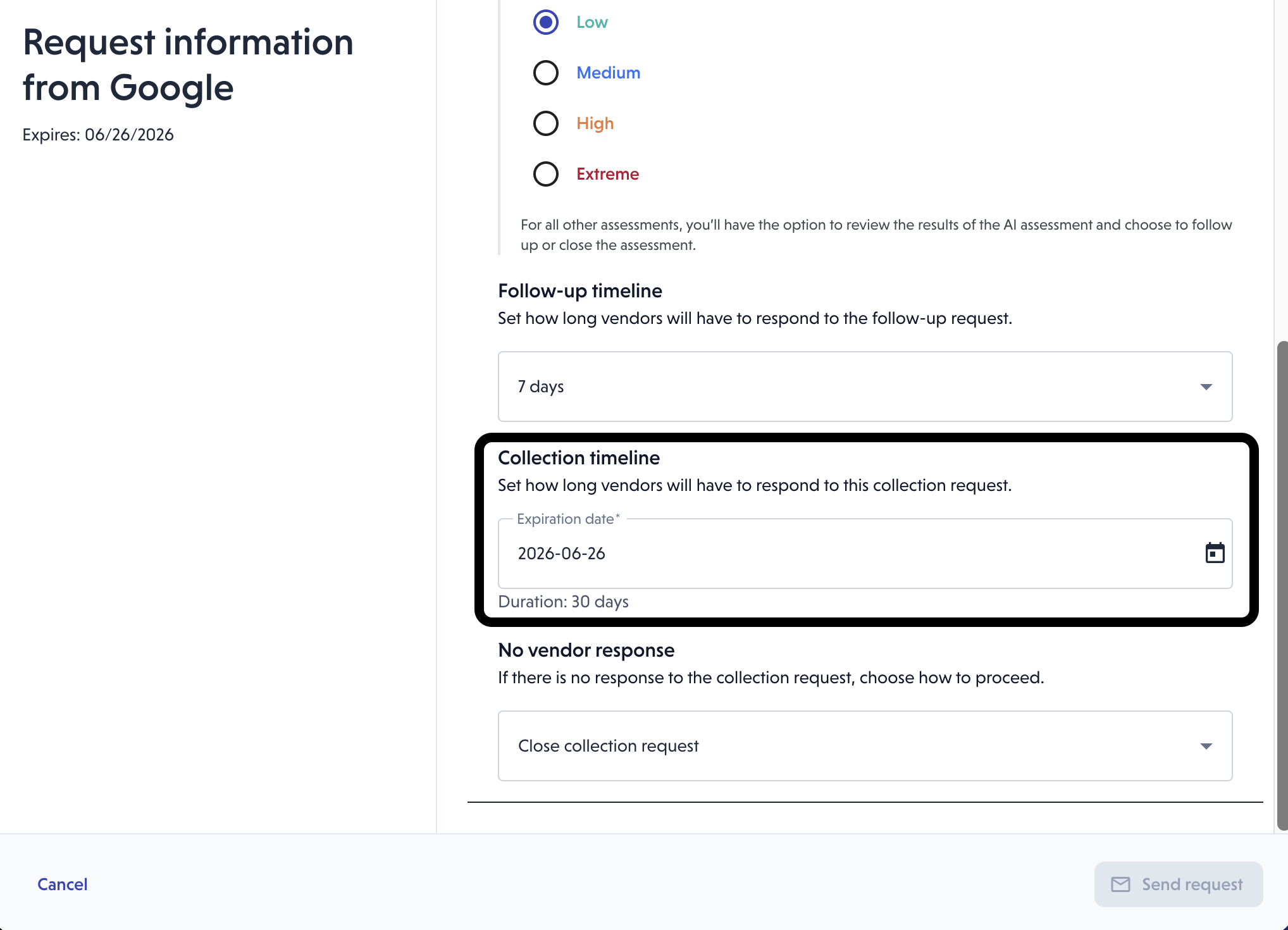
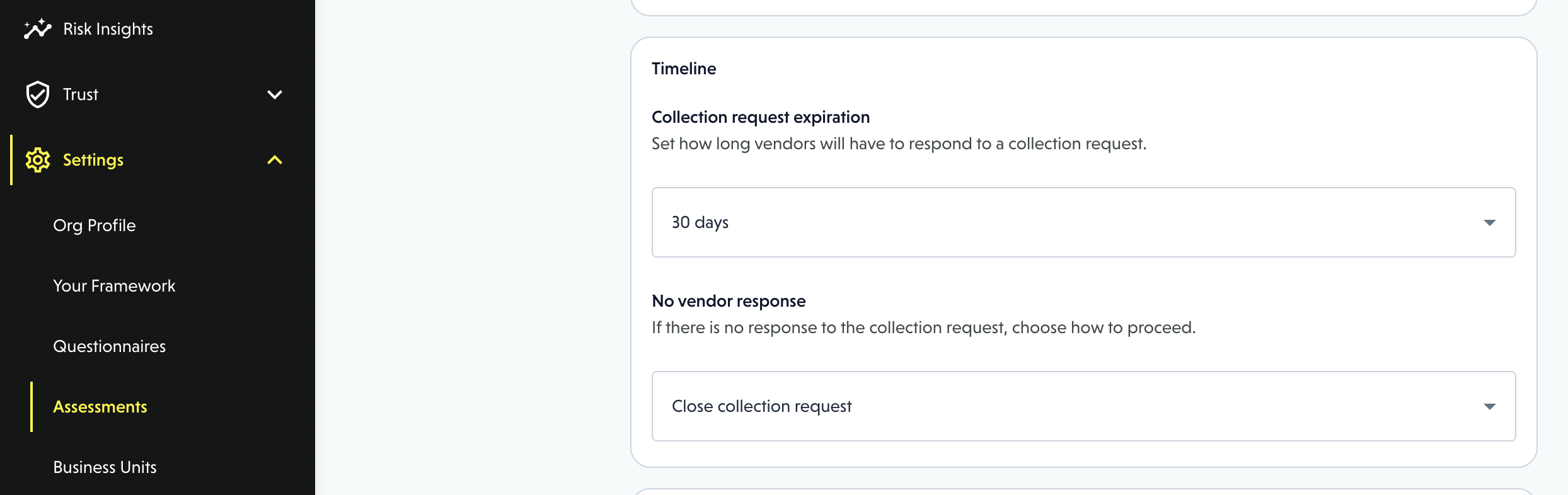
- The default initial collection timeline is 30 days, but this is configurable
- To change the timeline for a specific assessment, use Advanced Settings when sending the request
- To set a default timeline for all assessments in your organization, go to Settings > Assessments > Collection defaults
👉 Learn more about configuring assessment defaults
- Reminder emails are sent
- The reminder job runs every day at noon UTC, and from there: business owners and subscribers get a reminder every 5 business days, while vendor contacts get one every 3 days until the assessment is 3 days from expiring, when they get a final notice
- Edit follow up timeline
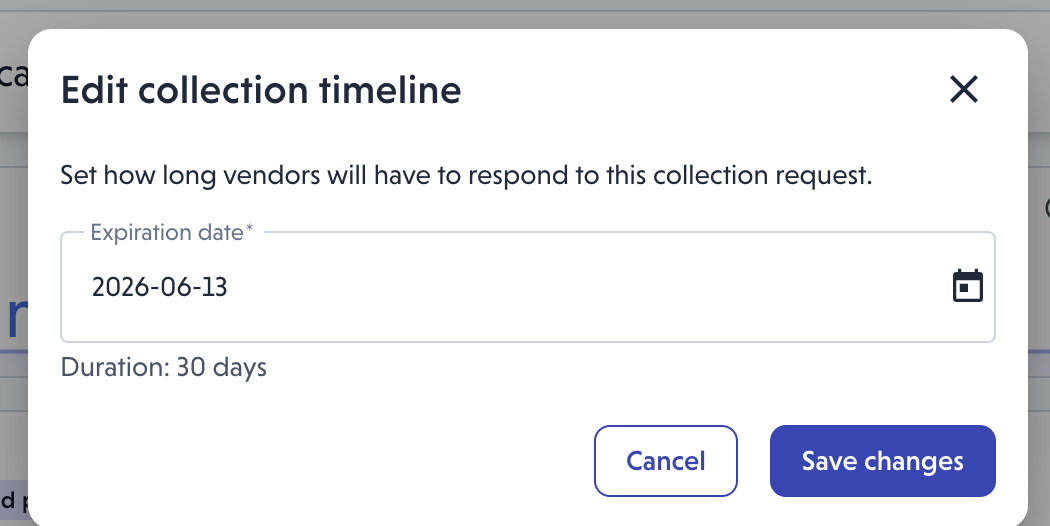
- You can update the collection timeline at any point while the assessment is in Collecting Info — for example, if the vendor needs more time to respond.
To extend the timeline:
- Open the active assessment
- Select Edit collection timeline
- The new expiration date is displayed
- The assessment moves back into Collecting information status
- A reminder email is sent to the vendor immediately
Reminder emails will continue to go out every 3 days until the vendor submits their response or the extended deadline passes. You can extend the timeline indefinitely — there is no limit on how many times the deadline can be extended.
- If the vendor does not respond
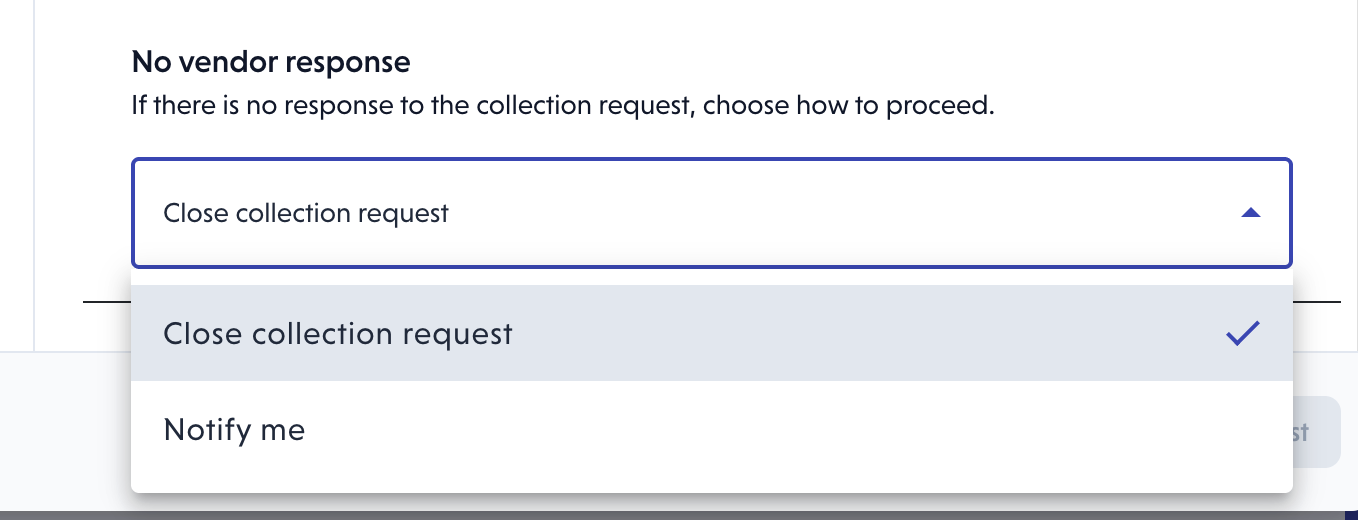
When the collection deadline passes without a vendor response, the platform follows the no vendor response setting configured for the assessment. There are two options:
Option 1: Notify me
The business owner and assessment creator receives an email notification:
"The security assessment of Third Party could not be completed because we never received their documents."
The assessment moves to Needs review in the assessment list and the collection request card is marked Expired. From here, you can choose how to proceed:
The assessment is automatically moved to Audit Completed. In the timeline, this will either appear as Follow-Up Recommended (if additional information could further reduce risk) or it will automatically move to Completed if a follow-up is not required (i.e. would not reduce the risk).
- Proceed with available information — the assessment is completed using whatever information has already been gathered
- Close the collection request — the collection request is closed and the assessment proceeds as usual with available data
If you choose to extend the timeline instead, reminder emails will continue, and if the vendor still does not respond after the extension passes, you will be notified again. This cycle can repeat indefinitely.
Option 2: Close collection request
If this option is configured, the assessment is automatically marked complete and proceeds as usual when the deadline passes.
Note: You can extend the timeline at any point while the assessment is ongoing.
- Vendor responds
If the vendor responds within the collection window, the submitted information is reviewed and validated by VISO TRUST. The assessment moves to Completed status once the review is finished. - Follow-up questionnaire
If unvalidated controls or unanswered questions are identified after the initial review, you have the option to follow up with the vendor.
👉 Learn more about follow-up questionnaires
Follow-Up Questionnaire Flow
When a follow-up questionnaire is sent to the vendor:
- The default follow-up response window is 7 days, but this is configurable
- Reminder emails are sent to the vendor automatically every 3 days, during this window.
- If the vendor does not respond within the follow-up window, the assessment automatically moves to Completed status using the information available at that point
- If the vendor does respond, their responses are reviewed and the assessment moves to Completed
Configuration Reference
The key settings that govern assessment lifecycle behavior are all configurable at the organization level, the relationship level, or for a single assessment.
Setting | What it controls | Where to configure |
Collection timeline | How long vendors have to respond to the initial collection request | Settings > Assessments; or Advanced Settings per assessment |
No vendor response | Whether to notify you or automatically close the request when the deadline passes | Settings > Assessments; or Advanced Settings per assessment |
Follow-up timeline | How long vendors have to respond to a follow-up questionnaire | Settings > Assessments; or per assessment |
Automated follow-up | Whether a follow-up questionnaire is sent automatically when gaps are identified | Settings > Assessments; or per assessment |
Note: Organization-level defaults apply to all assessments unless overridden at the relationship or individual assessment level.