Relationship Configuration Settings

Relationships and Assessments: Configuration
Overview
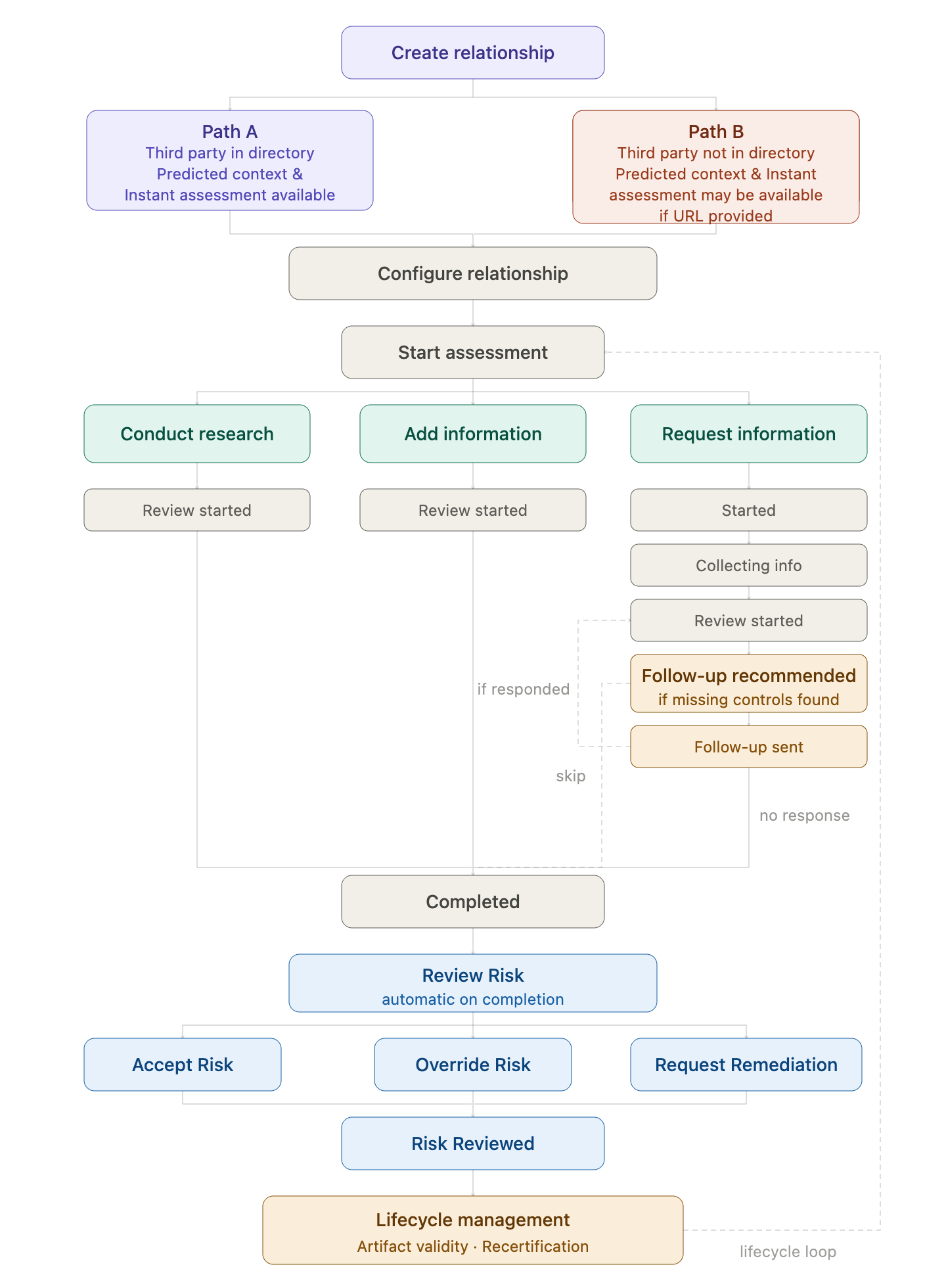
This guide covers the full lifecycle of a vendor relationship in VISO TRUST — from creating a relationship and configuring its settings, through the assessment process, to risk review and ongoing lifecycle management. Use it as a single reference for understanding how all the pieces connect.
The End-to-End Flow
Creating a Relationship
How you create a relationship in VISO TRUST depends on whether the vendor already exists in the system. There are two paths.
Path A: The Third-Party is in the directory (URL already in VISO TRUST)
When you begin creating a relationship, VISO TRUST checks whether the vendor's website URL is already known. If it is, the vendor appears as a recommended option and you can select it directly.
Because the URL is already available, VISO TRUST can immediately offer to predict relationship context and instantly assess — automatically analyzing vendor context, predicting inherent risk, and gathering intelligence from publicly available sources.
Note: VISO TRUST performs an instant assessment for vendors even if they are not in the directory, as long as a URL is provided.
What you configure during relationship creation (Table 1):
Field | Description |
Relationship name | Customize to differentiate this relationship from others with the same vendor |
Business owner | Internal owner responsible for this relationship |
Business purpose | How your organization plans to use this vendor |
Tags | Labels to organize and filter the relationship |
Predict relationship context and instantly assess | Toggle on to have VISO TRUST automatically run an instant assessment on creation |
What happens next:
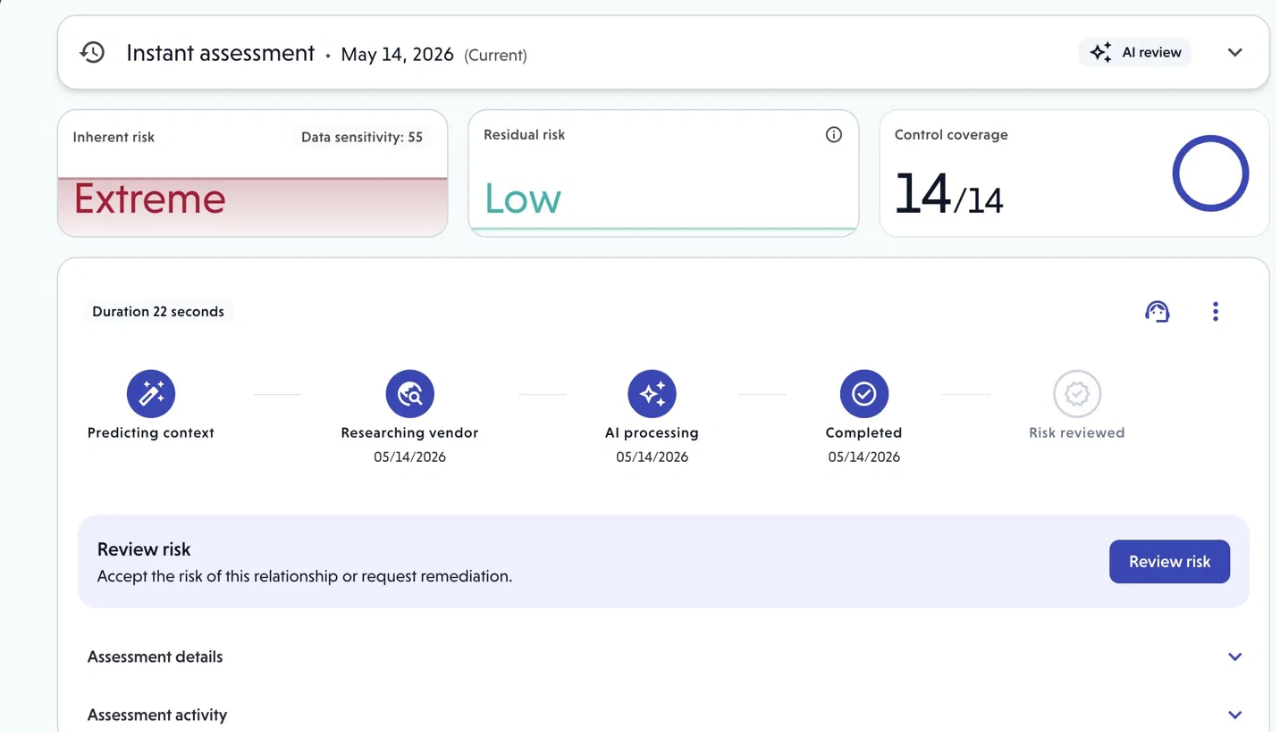
With the toggle on, VISO TRUST immediately begins the instant assessment. The assessment moves through these steps automatically:
- Predicting context — VISO TRUST predicts the relationship context based on the vendor's profile
- Researching vendor — public sources, certifications, breach history, and risk advisories are analyzed
- AI processing — findings are processed and risk is calculated
- Completed — assessment is finalized (typically within seconds to a few minutes)
- Risk reviewed — pending your action
Once completed, you have three options:
- Review risk — accept the risk, override the risk value, or request remediation if the assessment identified recommendations
- Request auditor review — if you want a human auditor to review the available artifacts, click the auditor icon on the assessment to submit a request
- Update assessment — start an additional assessment using one of three methods:
a) Request information — send a collection request to the vendor for additional artifacts and questionnaire responses
b) Add information — upload artifacts you already have directly
c) Conduct research — initiate a new public search assessment
Path B: New third-party organization (URL not in system)
If the vendor is not found as a recommended option, you are creating a brand new third-party organization in VISO TRUST. If the URL is not provided- the context prediction and Instant assessment cannot run automatically.
You can configure the fields as shown in Table 1 (above) during relationship creation.
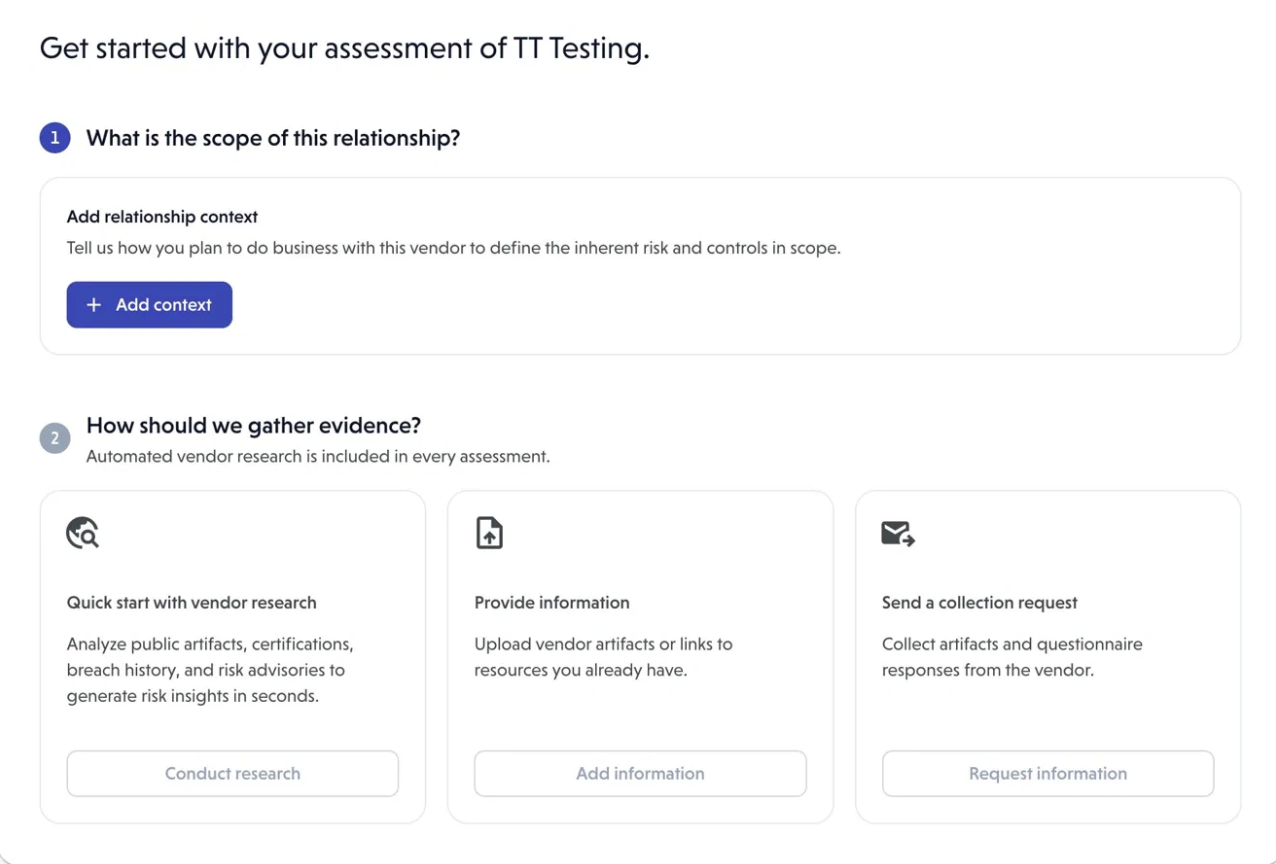
Before an assessment can begin, you must first add relationship context.
- Click Add context on the relationship to define the scope — this tells VISO TRUST how you plan to do business with the vendor and determines the inherent risk and controls in scope
- Once context is added, you can initiate an assessment using any of the three methods:
- Conduct research — analyze public artifacts, certifications, breach history, and risk advisories to generate risk insights automatically
- Add information — upload vendor artifacts or links to resources you already have
- Send a collection request — collect artifacts and questionnaire responses directly from the vendor
Note: Public artifacts search is included in every assessment when a URL is provided.
Part 1: Relationship Configuration
Every vendor relationship has a configuration panel accessible by clicking the gear icon in the relationship header, or the edit (pencil) icon next to any section on the Details tab.
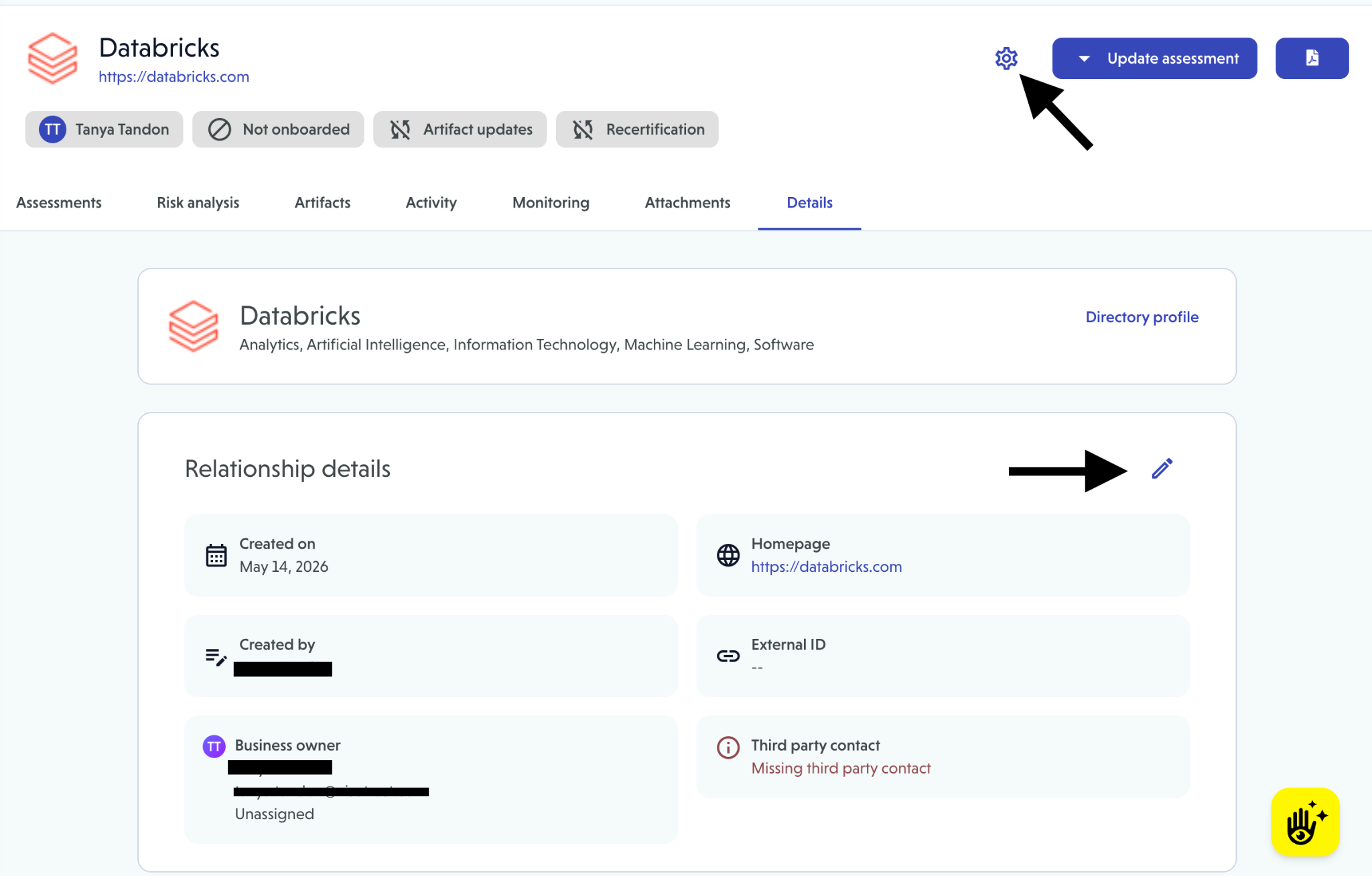
The configuration panel is organized into three sections: Relationship, Context, and Assessments.
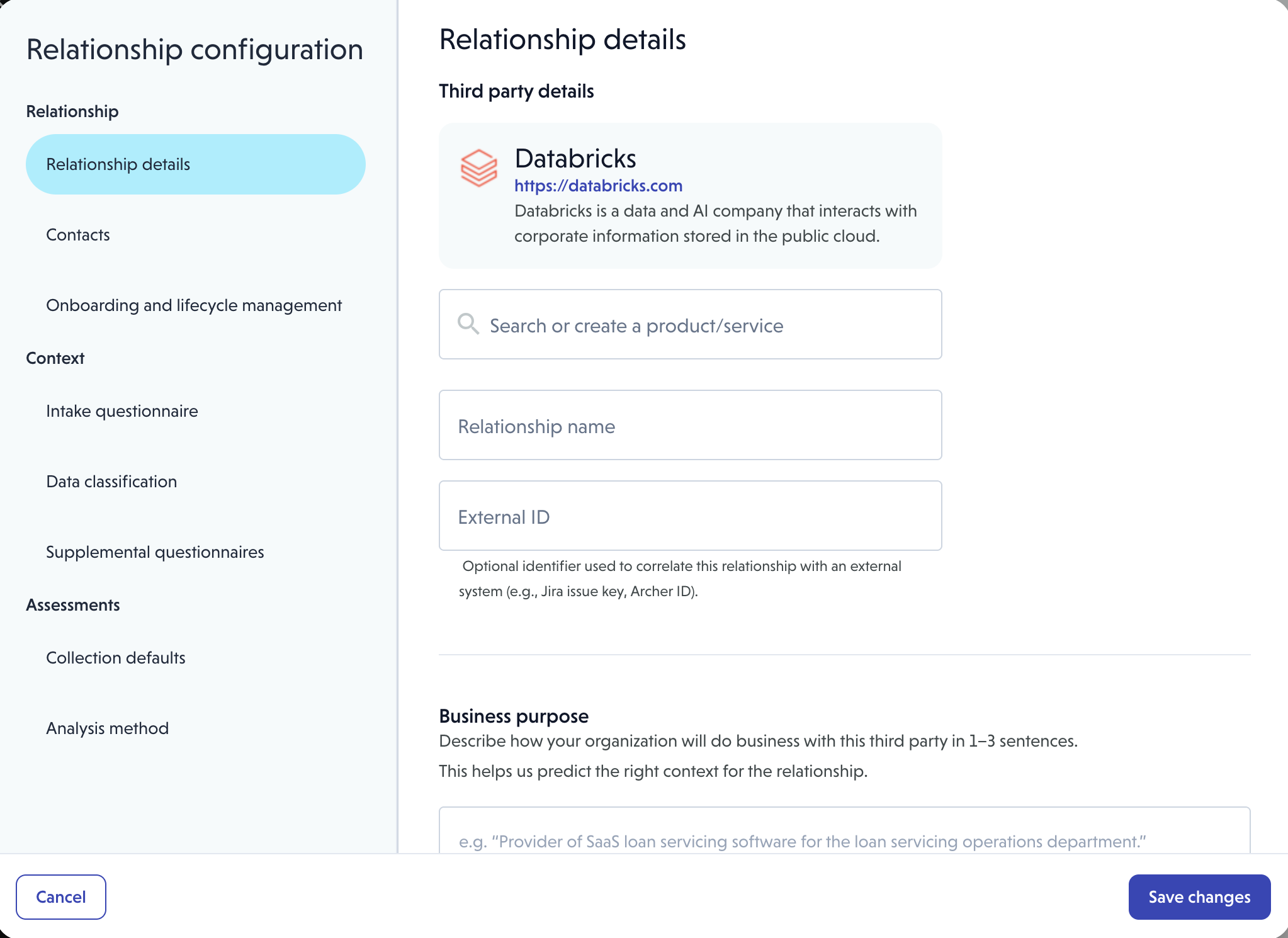
Relationship
Relationship details
Setting | Description |
Relationship name | The name used across VISO TRUST for this relationship |
External ID | Optional reference ID from another system (e.g., Jira issue key, Archer ID). Used to correlate this relationship with a downstream system |
Business purpose | Describe how your organization uses this vendor. Used to predict the right risk context and controls |
Tier | Groups the vendor for reporting and oversight |
Tags | Labels to help organize and filter relationships |
Contacts
Settings | Description |
Third party contact | The vendor's primary contact (e.g., account manager). Used for collection requests and reminders. Updating this while a collection request is open will send a reminder email to the updated contact |
Business owner | Your internal owner of the relationship. Toggle Enable notifications to alert them about updates and required actions |
Subscribers | Additional internal stakeholders who receive email notifications on changes to the relationship |
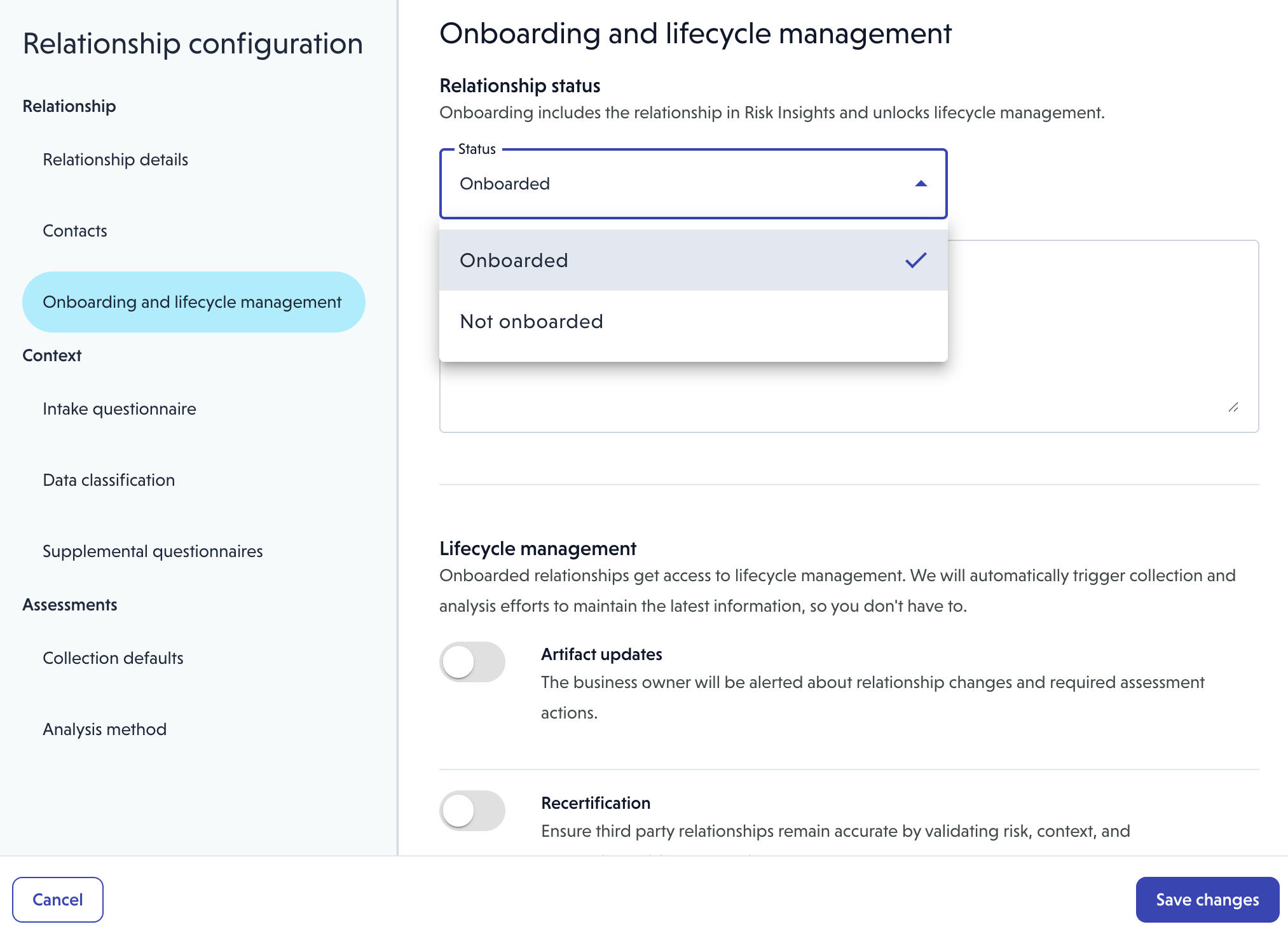
Onboarding and lifecycle management
Setting | Description |
Relationship status | Onboard to include the vendor in Risk Insights and enable lifecycle management. Archive to hide the vendor from your active relationship list |
Artifact updates | Automatically requests updated documents 30 days before they expire. Choose whether to remind the business owner, or contact the vendor directly |
Recertification | Schedules periodic reviews. Set a start date and frequency (e.g., annually). Choose whether the recertification request goes to the internal owner or the vendor |
Note: You can select multiple relationships from the Relationships List Page to archive them in bulk.
Context
Relationship context defines the threat surface, controls in scope, and data sensitivity for a vendor. Configuring context enables VISO TRUST to tailor assessments and accurately determine inherent risk.
Context is configured across three sub-sections:
Intake questionnaire
Captures how the vendor is used — what systems they connect to, what processes they support, and what their role is. Used to predict inherent risk and scope the right controls.
Data classification
Specifies the types and sensitivity of data shared with the vendor. VISO TRUST uses this to calibrate the data sensitivity dimension of the risk model.
👉 Learn more about Data Types and Impact
Supplemental questionnaires
Assigns specific questionnaires to be sent during the assessment. You can configure questionnaires to apply globally to all relationships, or assign them individually here.
👉 Learn more about Questionnaires
Once context is configured, you can initiate an assessment:
Assessments
Assessment settings control how collections are run for this specific relationship. Settings configured here override organization-level defaults for all new assessments on this relationship.
Collection defaults
Setting | Options | Description |
Required artifacts | Add one or more (e.g., SOC 2, ISO 27001, pen test) | Vendors must upload or attest to each artifact before completing the collection |
Collection timeline | Custom duration | How long the vendor has to respond before the deadline |
No vendor response | Close collection request / Notify me | What happens when the deadline passes without a vendor response. Close proceeds automatically with available data. Notify me alerts you to extend or cancel |
Automated follow-up | Always ask / Conditional based on residual risk | Whether to automatically send a follow-up questionnaire when gaps are identified after the initial review |
Analysis method
Option | Description |
AI assessment | Artifacts are analyzed immediately by AI. Results are available within seconds of submission |
AI assessment + Auditor review | AI analyzes first, then an auditor validates before finalization. Extends time to results |
Part 2: Assessment Phases
Once a relationship is configured, assessments move through a defined set of phases depending on how they were initiated.
👉 Learn more about Assessment Phases
Assessment paths
- Conduct Research
VISO TRUST searches public sources for artifacts, compliance attestations, and risk advisories. Discovered artifacts are analyzed by AI. No vendor involvement is required. The assessment reaches Completed using publicly available information.
- Add Information
Artifacts are uploaded directly on behalf of the vendor — no vendor portal involved. Analysis begins immediately using the configured analysis method (AI or AI + Auditor). The assessment reaches Completed.
- Request Information (no control gaps)
- Started — collection portal link emailed to vendor
- Collecting information — vendor opens portal and begins submitting
- Review started — vendor submits; VISO TRUST begins analysis
- Completed
- Request Information (control gaps identified)
- Started
- Collecting information
- Review started
- Follow-up recommended — gaps identified that could reduce residual risk
- Follow-up sent (optional) — vendor receives a missing controls questionnaire; timeline can be configured
- Completed — follow-up processed, or skipped
Note:
- You can extend the follow up timeline at anytime during the assessment when it is in collecting info.
- You can upload artifacts at any phase. If an assessment is already Completed, uploading new artifacts starts a new assessment automatically.
Part 3: Risk Review
Once an assessment reaches Completed, it automatically moves to Review Risk status. Your team then has three actions available from the Review Risk button in the assessment summary.
👉 Learn more about Risk Review and Acceptance Process
Part 4: Lifecycle Management
For ongoing relationships, lifecycle management automates the process of keeping assessments and documentation current.
Artifact validity
- VISO TRUST monitors artifact expiry dates and triggers outreach 30 days before expiry
- Choose whether to remind the business owner to provide updated artifacts, or have VISO TRUST contact the vendor directly
Recertification
- Set a start date and frequency (e.g., annually) to schedule periodic re-assessment
- Choose whether to remind the internal owner or automatically reach out to the vendor
- When a recertification is triggered, a new assessment update is started automatically (or a reminder is sent, depending on your configuration)
- Organization-level assessment defaults apply to all lifecycle-triggered assessments
Onboarding
- Select a Not Onboarded relationship from your list
- Click the Not Onboarded dropdown and select Onboard