Viewing and Editing Artifacts

Artifacts are the evidence documents — security certifications, audit reports, policies, and more — that VISO TRUST collects and analyzes to evaluate a vendor's security posture. This article explains the metadata displayed in the artifact table and the actions available to you when managing artifacts on an assessment.
The Artifact Table
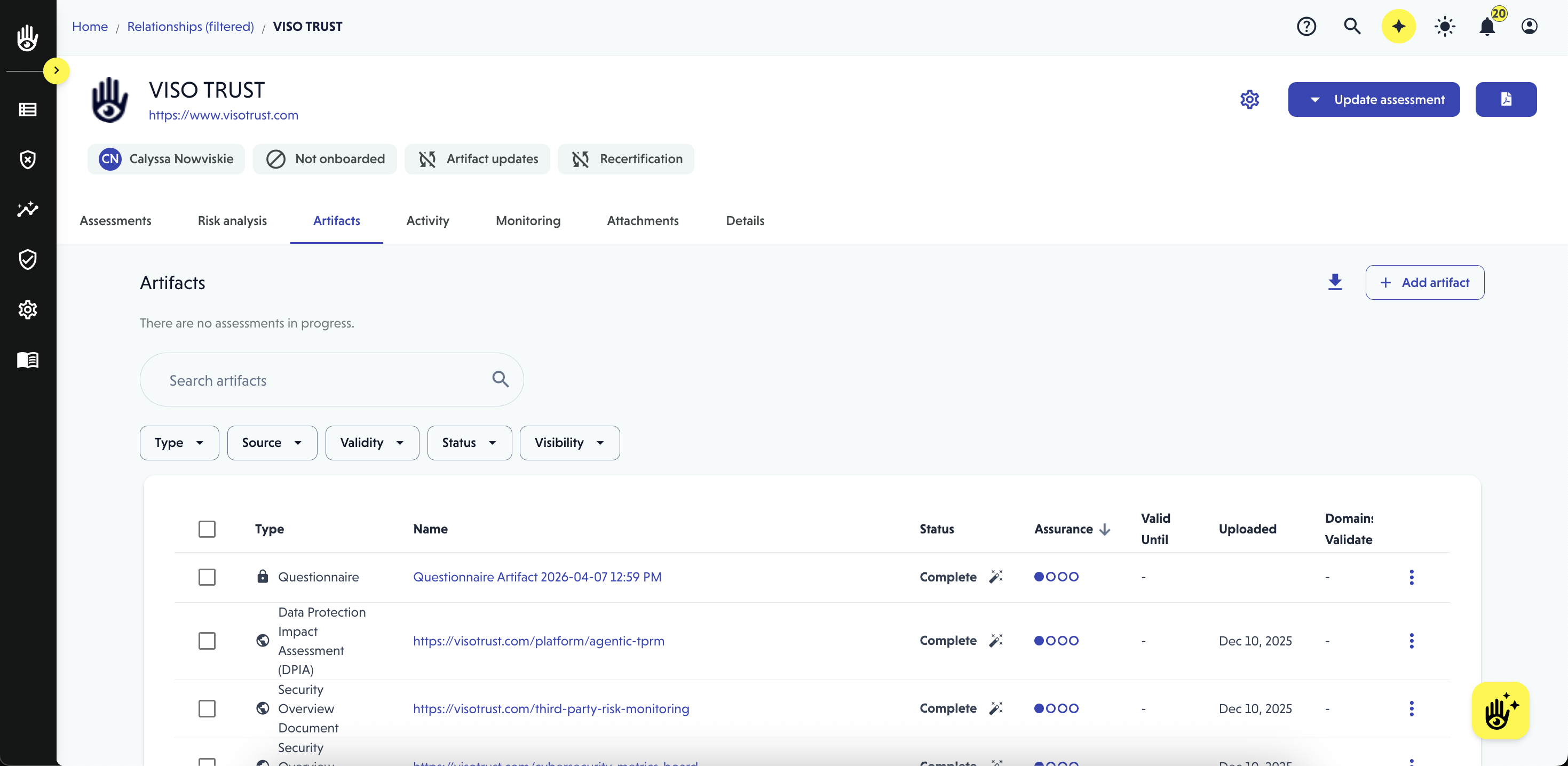
Each artifact in an assessment is displayed as a row in the artifact table. You can find the artifact table by navigating to the Relationship > Artifacts. Here's what each column tells you.
Source
The Source indicates how the artifact was collected:
- Collected from your organization — Someone in your organization uploaded this artifact directly.
- Collected from the vendor — The artifact was provided by the vendor being assessed.
- Publicly collected — VISO TRUST discovered this artifact through a public search effort.
Type (Classification)
The Type column shows the artifact's classification, which VISO TRUST determines automatically during analysis (for example, SOC 2 Type II, ISO 27001 Certificate, or Penetration Test Report).
If the automatic classification is incorrect, users assigned to the relationship or admins can update it.
Analysis Status
The Analysis Status column reflects where the artifact is in the review process:
- Analyzing — The artifact is currently being processed.
- Complete — Analysis was completed.
Assurance Level
Assurance represents the confidence level that the information in an artifact is accurate and rigorous. Think of it as a measure of how strongly an artifact supports the control attestations found within it.
A few key points about how assurance works:
- Each artifact type has a maximum assurance value, determined by the nature of that document type. Third-party audits (such as SOC 2 reports) carry the highest assurance levels.
- Individual artifacts are dynamically scored based on factors including rigor, control density, exception rate, program design, and audit period length (where relevant).
- Assurance is further refined at the control level based on the specific evidence found within the artifact.
You can review the assurance levels associated with each artifact type in Glossary > Artifact Types within the app.
Validity Period
Each artifact type has a default validity period established by VISO TRUST, reflecting the industry standard for how long that type of document remains current. The start date of the validity period is determined during artifact analysis and can be viewed or edited inside the artifact viewer.
- Artifacts within their validity period receive full assurance.
- Artifacts past their validity period receive a discounted assurance score, reflecting that the information may be outdated.
- VISO TRUST applies a validity buffer of 30 to 90 days beyond the validity period end date. This grace period gives your team time to collect updated documents before any impact is felt on risk scores.
You can find default validity periods for each artifact type in Glossary > Artifact Types. The validity date for a specific artifact can be edited inside the artifact viewer.
Domains Validated
This column shows how many control domains the artifact contributes to in the risk analysis. A single artifact may validate multiple domains depending on the breadth of its content.
Vendor
The Vendor column identifies the organization responsible for the artifact. This is especially useful when multiple artifacts cover different entities in the assessment — for example, one SOC 2 for the primary vendor and a separate SOC 2 for a subservicer. The Vendor column helps distinguish between them.
Quick Actions
Each artifact row includes quick actions accessible from the artifact table.
Exclude Artifact
Excluding an artifact removes it from the risk analysis without deleting it. This may reduce control coverage and affect risk calculations. The artifact remains available if you need to re-include it later.
Delete Artifact
Deleting an artifact permanently removes it from the relationship. This action cannot be undone.
Bulk actions
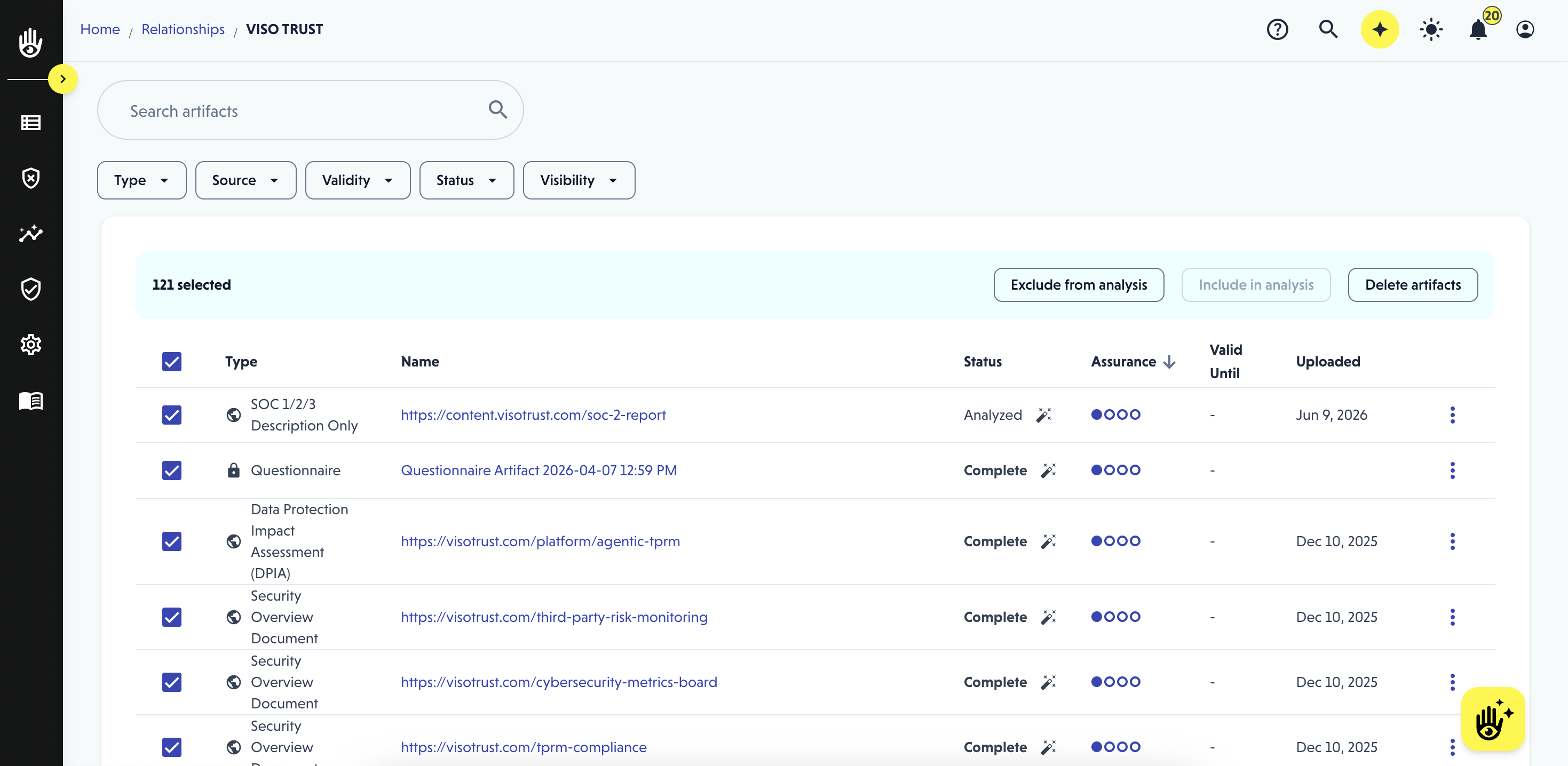
You can manage multiple artifacts at once using the checkboxes at the beginning of each row. This is useful when you want to focus the assessment on a specific subset of evidence.
Example: To limit the assessment to privately collected artifacts only, filter the table by Source: Public, select all filtered results, and choose Exclude. This removes all publicly collected artifacts from the analysis in one step without deleting them.
The Artifact Viewer
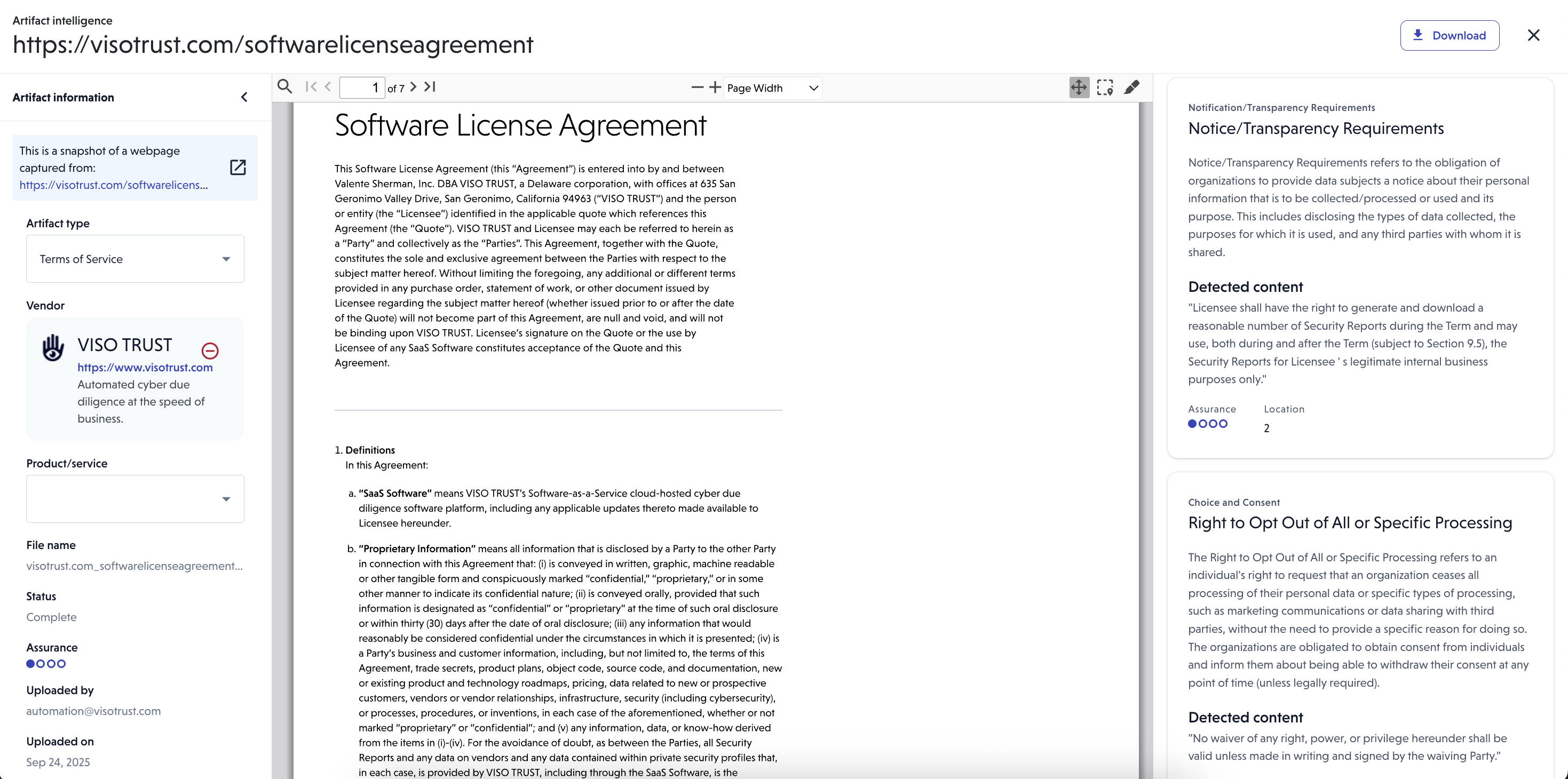
Click on an artifact's name to open the artifact viewer, which provides a detailed view of that document.
From the artifact viewer, you can:
- View a PDF snapshot of the artifact.
- Read a generated summary produced by VISO TRUST's analysis.
- Review all detections identified within the artifact — the specific controls and findings extracted during analysis.
- Edit artifact metadata.
Editing Artifact Metadata
Users assigned to the relationship and admins can edit the following fields from within the artifact viewer:
Field | What You Can Change |
Artifact Type | Correct the classification if it was automatically identified incorrectly. |
Vendor | Update the identified responsible organization. |
Validity Date | Adjust the validity period end date. |
Inclusion / Exclusion | Toggle whether this artifact is included in the risk analysis. |
Edits are automatically saved when you exit the artifact viewer, so there is no need to manually save your changes.
All edits are logged in the relationship's Audit Log, accessible under the relationship activity section.
Important: If you make edits outside of an active assessment, the assessment summary and risk calculations may become outdated. After editing artifact metadata, update the assessment to ensure all changes are accurately reflected.